
A practical, optician-led guide to choosing glasses for two monitors: measure the real working distances, identify the lens zone you need, and fix the workstation before paying for a new pair.
Quick answer
For dual monitors, the best glasses are usually the pair that gives a wide, stable intermediate zone at your measured screen distances. That may be an everyday progressive if the monitors sit within its usable corridor and screen work is occasional. For eight-hour computer use, a dedicated office or occupational lens often provides more horizontal room and a more natural head position. A single-vision computer prescription can be the simplest option when both screens and nearby desk material sit at similar distances.
Do not order from the label “computer glasses” alone. Measure each screen, note its height, and tell the prescriber where the displays actually sit. Lens design and workstation geometry must be planned together.
Why two monitors expose lens limitations
Everyday progressive lenses combine distance, intermediate, and near vision in one lens. To create those powers without a visible line, the design places unwanted blur toward the sides. On one centered screen, you may naturally look through the intermediate corridor. With two wide screens, your eyes can move outside that corridor unless you turn your head.
This does not mean the lenses are defective. It can be a mismatch between the usable zone and the task. The mismatch becomes more obvious when:
- one monitor is farther away than the other;
- the displays are high enough that you lift your chin to find clarity;
- the primary monitor is off-center;
- the progressive corridor is short or narrow;
- the frame slides down or has changed position;
- your near addition is stronger, which can reduce tolerance for the wrong zone.
Measure the workstation before choosing lenses
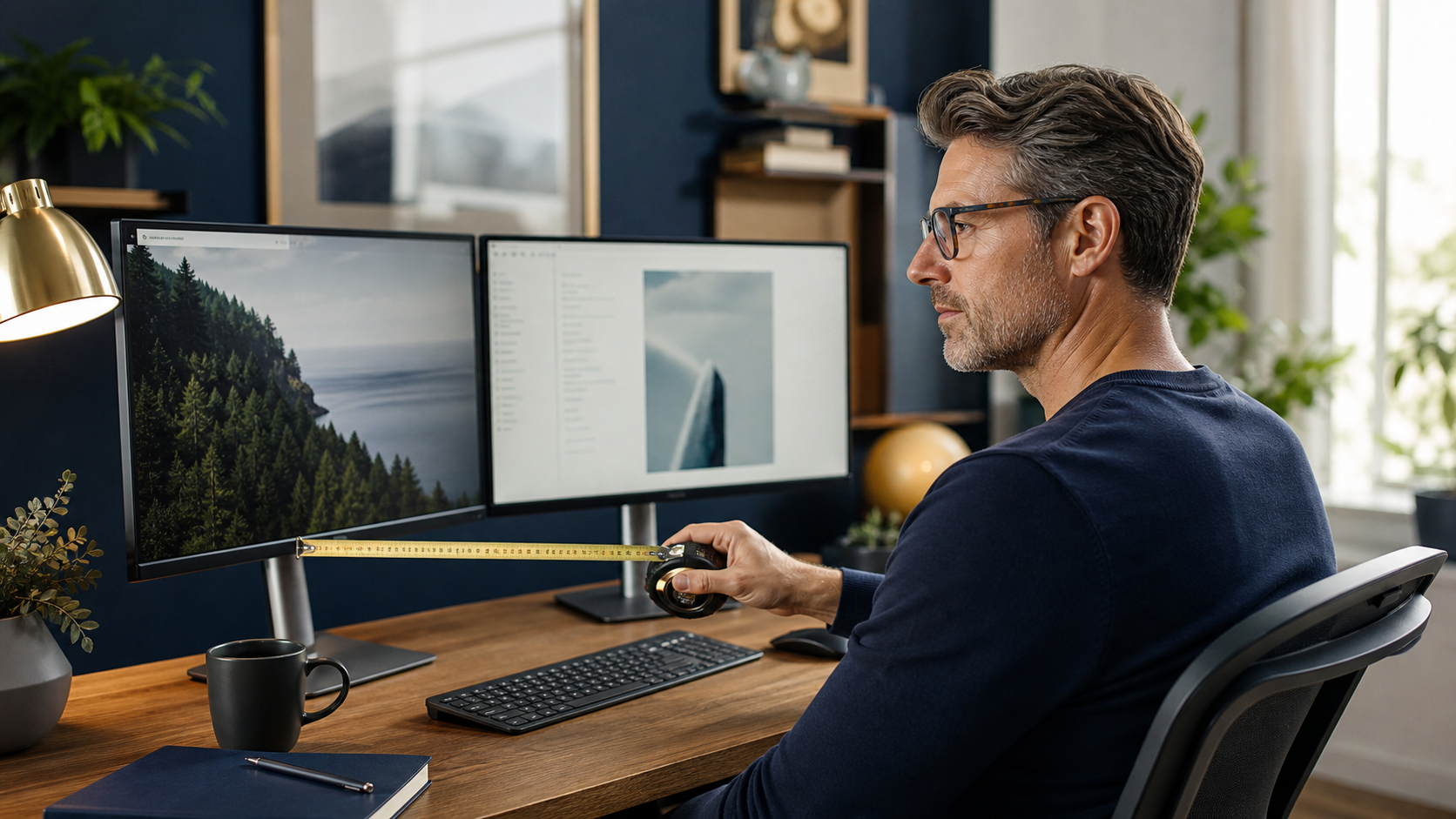
Use a tape measure while sitting in your normal working posture. Do not lean forward to reach a preferred number.
- Measure eye-to-screen distance. Measure from the bridge area to the center of each monitor. Record both values in centimeters or inches.
- Measure screen height. Note where the top and center of each display sit relative to your straight-ahead gaze.
- Measure near tasks. Record the usual distance to a phone, keyboard notes, documents, or tablet.
- Map your day. Estimate the percentage of time spent on the primary monitor, secondary monitor, room distance, and close reading.
- Photograph the setup. A side and front photo can help a prescriber understand posture and screen placement.
| Measurement | Why it matters | What to record |
|---|---|---|
| Primary screen distance | Sets the dominant intermediate demand | Actual seated distance |
| Secondary screen distance | Shows whether one prescription can cover both | Distance and horizontal angle |
| Screen center height | Affects which lens zone you use | Below, level with, or above straight-ahead gaze |
| Desk reading distance | Determines whether near support is needed | Typical document or phone distance |
| Room-distance need | Limits how much distance blur is acceptable | Meetings, visitors, whiteboard, walking |
Three lens strategies for dual monitors
1. Single-vision computer lenses
A single-vision computer prescription is set for one working range rather than general distance. It can deliver a broad field when both monitors are at similar distances. It is often the least complicated choice for a fixed workstation.
The tradeoff is limited distance vision. Depending on the prescribed power, signs across the room and safe walking vision may be blurred. Use this pair only for its intended range and follow the prescriber’s instructions.
2. Office or occupational lenses
Office lenses prioritize intermediate and near vision. Many designs can be configured for a chosen maximum distance, giving more screen width than an everyday progressive. They suit people who alternate between monitors, documents, a phone, and short room distances.
They are not general-purpose driving lenses. Read our detailed comparison of office lenses versus everyday progressives before choosing.
3. Everyday progressive lenses
An everyday progressive keeps distance, intermediate, and near vision in one pair. It can work for occasional dual-screen use, especially when the monitors are centered, slightly lower, and within the intermediate zone. However, it usually asks the wearer to move the head more than a dedicated office design.
If your current pair is otherwise comfortable, workstation changes may solve the problem without replacing it. Our guide to progressive lenses for computer work explains the tradeoffs.
Set up two screens around the lens
- Center the main task. Put the screen used most directly in front of you.
- Bring the second screen close. Minimize the gap and large differences in distance.
- Angle both displays inward. Create a gentle arc around your seated position.
- Lower the displays if needed. Progressive wearers often find intermediate vision with a slightly downward gaze. Avoid an exaggerated chin-up posture.
- Increase text size. Magnification can reduce leaning and keep the chosen distance stable.
- Move windows, not only your head. Put detail-heavy tasks in the clearest central area.
- Control glare. Position lights and windows so reflections do not force awkward posture.
What to ask at the eye exam or optical fitting
Bring your measurements and describe the task in plain language: “My primary screen is 70 cm away, the second is 75 cm away and 25 degrees to the right, and I read documents at 45 cm.” That is more useful than asking for a generic blue-light lens.
Ask:
- Which prescription is intended for my measured screen distance?
- How much room distance will remain clear?
- Would a single-vision computer lens or office design give a wider field?
- What maximum distance is the office lens configured for?
- Will fitting height be measured in the exact frame while I wear it naturally?
- How should the monitors be positioned for this design?
Blue-light filters are not the main decision
Comfort at a screen depends on prescription accuracy, focusing and eye-teaming demands, dry-eye factors, blinking, glare, text size, breaks, and workstation position. A blue-light-filter option does not correct the wrong working distance or widen a narrow intermediate corridor. Treat coatings as a secondary choice after the prescription, design, measurements, and setup are settled.
A seven-day troubleshooting test
- Record which monitor blurs and at what distance.
- Center that monitor and match both screen distances.
- Lower the screens slightly and increase text size.
- Clean the lenses and confirm the frame is not sliding.
- Use deliberate head turns instead of looking far through the lens sides.
- Take regular visual breaks and blink fully.
- If the blur persists, bring the notes, glasses, and workstation measurements to the dispenser.
Safety note: Computer discomfort is not a diagnosis. Seek prompt professional care for sudden vision loss, new double vision, eye pain, flashes with a shower of floaters, or symptoms accompanied by weakness, severe headache, or other neurological changes.
Decision table
| Your pattern | Useful starting discussion | Main compromise |
|---|---|---|
| Two similar-distance screens, little room viewing | Single-vision computer prescription | Distance beyond the desk may blur |
| Screens plus documents and short room viewing | Office/occupational design | Not for driving or general distance use |
| Occasional screen work plus frequent distance tasks | Everyday progressive and workstation adjustment | Narrower intermediate field |
| Unclear needs or changing workstations | In-person assessment with measured distances | May require more than one pair |
Frequently asked questions
Can one pair work for two monitors?
Yes, if the prescription and usable lens zone match both distances. Similar screen distances and a centered arrangement make success more likely.
Should dual monitors be at eye level with progressives?
Not always. A slightly lower screen position often allows a more natural downward gaze through the intermediate zone. The correct height depends on the lens design, frame position, and your posture.
Are computer progressives the same as everyday progressives?
No. Occupational designs usually prioritize intermediate and near fields and may intentionally limit far distance. Product names vary, so ask for the usable distance range rather than relying on the label.
Do I need a separate pair?
If screen work occupies most of the day and you repeatedly search for a narrow clear spot, a task-specific pair may be more comfortable. A professional should confirm the prescription and intended range.
Bottom line
Start with measured distances and task priorities. Then choose between broad single-vision computer clarity, an office lens with intermediate and near range, or the all-day convenience of an everyday progressive. The right answer is the lens-and-workstation system that keeps both monitors clear without sustained chin lifting, leaning, or constant searching.
Before ordering online, use our progressive glasses buying checklist and confirm how PD, fitting height, frame position, and remake terms will be handled.

About Ho Truong
Ho Truong is a trained optician at a family optical practice established in 1991. Lens InsiderS explains lens design and fitting choices for buyers. It does not diagnose eye conditions or replace an eye examination.